Description
-
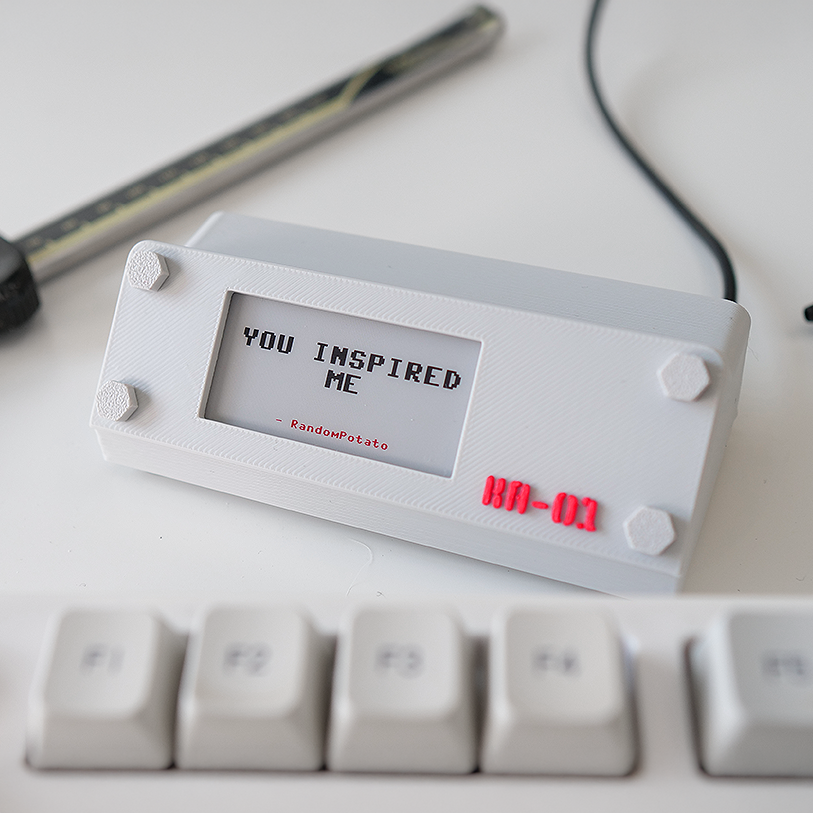
The Kindness Archive is a small desktop device that shows a randomly selected personal message whenever it receives power.
Fill it with kind comments, meaningful messages, memories, or anything else you would like to be reminded of or remind a loved one of. Connect it to your computer, and each time you begin your workday, a new message slowly appears on the e-paper display.
Unlike generic affirmations, every message can come from a real person and a real moment in your life.
This download contains everything needed to build your own KA-01 enclosure and run the included MicroPython software.

What is included
- Ready-to-print STL files
- Editable FreeCAD source files
main.pyMicroPython code- Example
compliments.txtfile - Basic assembly instructions
This is a digital download. No physical components are included.
What you need
- A Raspberry Pi Pico or Raspberry Pi Pico W
- A Waveshare Pico-ePaper-2.13-B display
- A Micro USB cable that fits inside the enclosure
- A 3D printer
- Filament in your preferred colors
The supplied code was written for the V4 version of the Waveshare Pico-ePaper-2.13-B. V4 uses a 250 × 122-pixel black, white and red display. Earlier versions use different resolutions and require changes to the code.
I recommend printing the enclosure before choosing the USB cable, so you can check that the connector and strain relief fit through the available space.
Adding your own messages
Open compliments.txt and add one message per line using this format:
This is a compliment|Sender
You inspired me|RandomPotato
I am proud of you|Boo
Everything before the | symbol is displayed as the message. Everything after it is shown as the sender.
You can add, remove, or replace as many entries as you like.
How to build it
1. Print the enclosure
Print the included STL files.
The parts are designed to print:
- without supports;
- without an AMS or other multi-material system.
To print the red KA-01 detail in a second color, add a layer-based filament change in your slicer.
I recommend using a relatively small layer height for the decorative bolts. You may also want to use a smaller layer height around the threaded holes for a cleaner fit.
2. Prepare the Raspberry Pi Pico
Install MicroPython on your Raspberry Pi Pico and upload:
main.py
compliments.txt
Both files should be stored in the Pico’s root directory. Because the program is named main.py, it starts automatically whenever the Pico receives power.
There are many online tutorials explaining how to install MicroPython and transfer files using applications such as Thonny.
3. Assemble the device
Connect the Raspberry Pi Pico to the Waveshare display and place the electronics inside the enclosure.
Take care when handling the e-paper panel and its ribbon cable. Waveshare notes that both are fragile and should not be sharply bent, pressed or dropped.
Fit the front panel and secure it using the four printed bolts.
Connect the USB cable, and the archive should select and display a message whenever it powers on.
Customizing the enclosure
The original FreeCAD files are included, so you can modify:
- the enclosure dimensions;
- cable opening;
- front-panel layout;
- logo;
- mounting details;
- colors and decorative elements.
The included design is intended for the Waveshare Pico-ePaper-2.13-B with a Raspberry Pi Pico mounted directly to it.
Important compatibility note
This project was built and tested with:
- Raspberry Pi Pico
- Waveshare Pico-ePaper-2.13-B V4 (https://www.waveshare.com/wiki/Pico-ePaper-2.13-B)
- MicroPython
- the included V4 display code
A Pico W should also fit and run the same basic program, but its wireless functionality is not used.
Other revisions of the Waveshare display may require changes to the driver, resolution, buffer size, or display orientation. The Waveshare documentation distinguishes V4 at 250 × 122 pixels from V3 at 212 × 104 pixels.
A small daily ritual
The e-paper display refreshes slowly. That is part of the experience.
Each time the device starts, the previous message disappears, the panel flickers, and a new one gradually appears. The refresh is not instant, the manufacturer lists approximately 15 seconds for a full V4 refresh, and the visible flashing during a full refresh is normal.
It turns starting your computer into a tiny daily reveal.
License: Files are for personal use only. You may modify and print them for yourself, but you may not redistribute, resell or commercially manufacture the digital or physical design.